Migrate User Risk and Sign-in Risk Policies to Conditional Access
Microsoft is retiring the legacy User risk policy and Sign-in risk policy experience in Microsoft Entra ID Protection on October 1, 2026.
If your organization is still using either of these policies under ID Protection, you should start planning the move to Conditional Access. The risk detections are not going away, but the policies that respond to those detections must be managed through Conditional Access instead.
What is changing?
Microsoft Entra ID Protection detects suspicious activity and assigns risk levels to users and sign-ins.
User risk is the probability that a user account has been compromised. This could, for example, be based on leaked credentials or suspicious activity linked to the account.
Sign-in risk is the probability that a specific authentication request was not made by the real user. Entra ID evaluates signals during each sign-in and sends the detected risk level to Conditional Access.
Previously, you could configure basic User risk and Sign-in risk policies directly under ID Protection. Going forward, these policies should be created as Conditional Access policies.
Moving them to Conditional Access gives you more control. You can use Report-only mode, manage the policies through Microsoft Graph, combine risk with other conditions such as locations, and see exactly which policy was applied in the Sign-in logs.
Before you start
You need Microsoft Entra ID P2 or Microsoft Entra Suite licensing to use the full risk-based Conditional Access features.
It is also recommended that users are registered for MFA before they are included in the policies. Otherwise, a risky user might be unable to complete the required remediation and could need help from an administrator.
For hybrid users who must change their password as part of the remediation process, password writeback must be enabled.
You should also exclude your emergency access accounts from the policies to avoid locking yourself out of the tenant.
Create the User risk policy
The User risk policy responds when Entra ID believes that the user account itself might be compromised.
Go to: Microsoft Entra admin center > Entra ID > Conditional Access > Policies
Create a new policy and configure it with settings similar to these:
- Include all required users and exclude emergency access accounts.
- Target All resources.
- Under Conditions, configure User risk.
- Select the risk level that should trigger the policy.
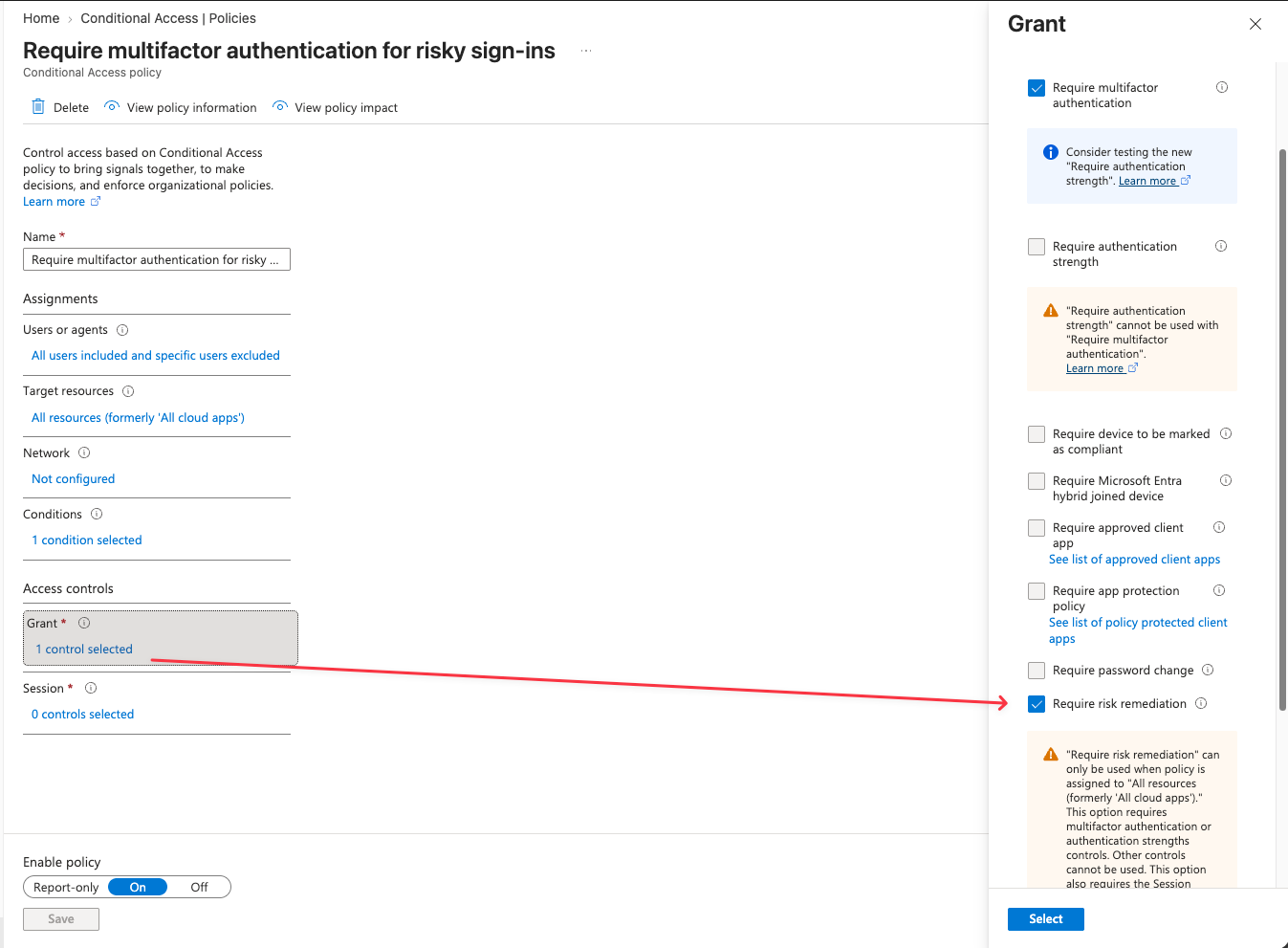
- Under Grant, select Require risk remediation.
- Start the policy in Report-only mode.
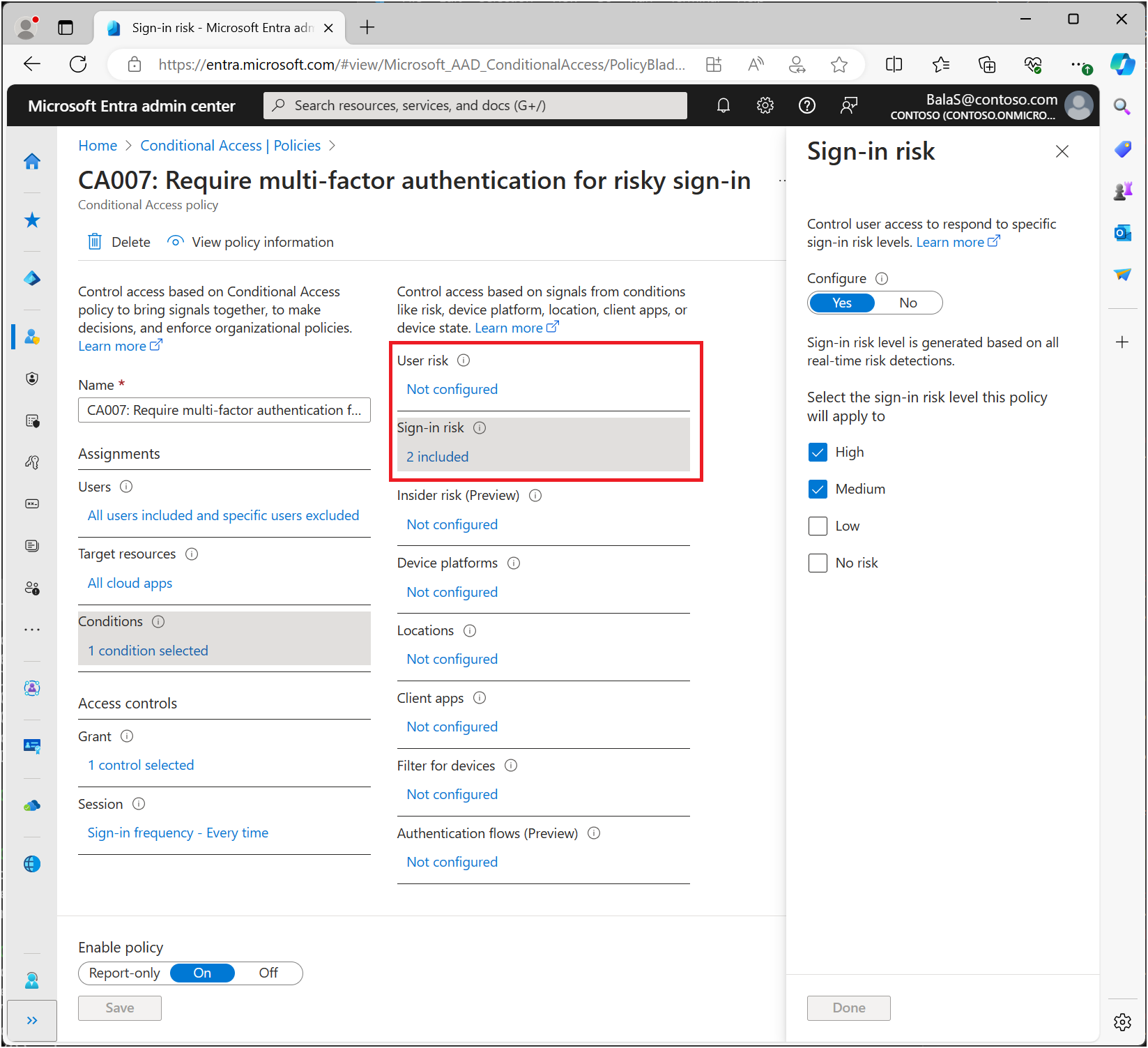
Microsoft currently recommends applying the policy to High user risk. However, the correct level depends on your organization and how much user interruption you are willing to accept.
When Require risk remediation is selected.
Entra ID chooses the correct remediation flow based on the user’s authentication method.
A password-based user will normally be asked to complete MFA and perform a secure password change. For a passwordless user, Entra ID can revoke the user’s sessions and require them to sign in again.
Create the Sign-in risk policy
The Sign-in risk policy responds to suspicious activity connected to an individual sign-in.
Create a separate Conditional Access policy and configure:
- The required users, excluding emergency access accounts.
- All resources as the target.
- Sign-in risk under Conditions.
- Medium and High risk levels.
- Require authentication strength using the built-in Multifactor authentication strength.
- Sign-in frequency set to Every time.
- Report-only mode during testing.
Microsoft recommends requiring MFA for Medium and High sign-in risk. A successful strong authentication can allow the user to prove their identity and remediate the risky sign-in without administrator involvement.
Test the new policies
Before enabling the new policies, leave them in Report-only mode.
Use the Conditional Access insights, policy impact information and Sign-in logs to confirm that the correct users and sign-ins would be affected. Also check that exclusions, authentication methods and remediation flows work as expected.
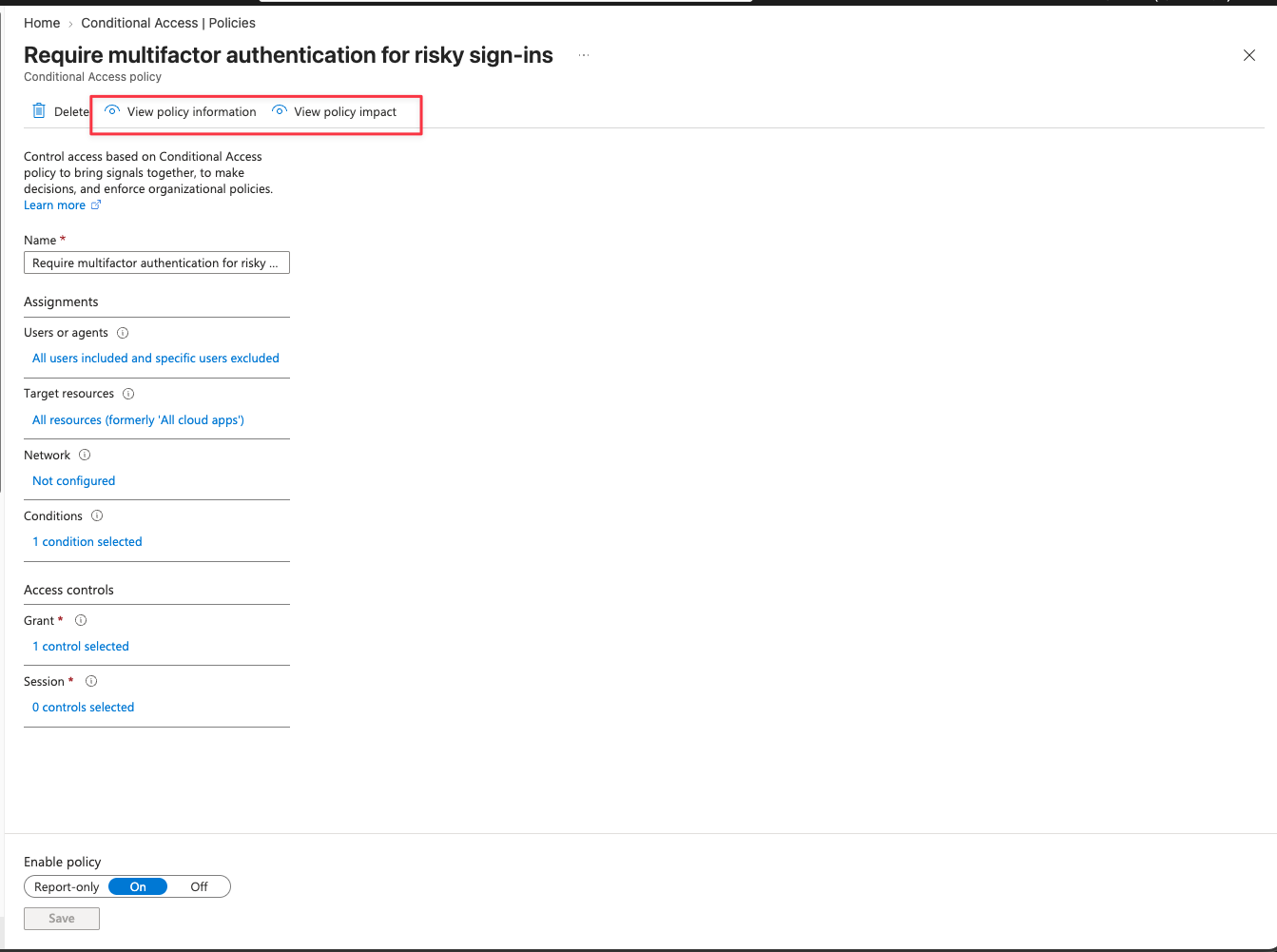
It is a good idea to compare the new Conditional Access configuration with the settings in your existing ID Protection policies.
Once you are satisfied with the results, change the new policies from Report-only to On.
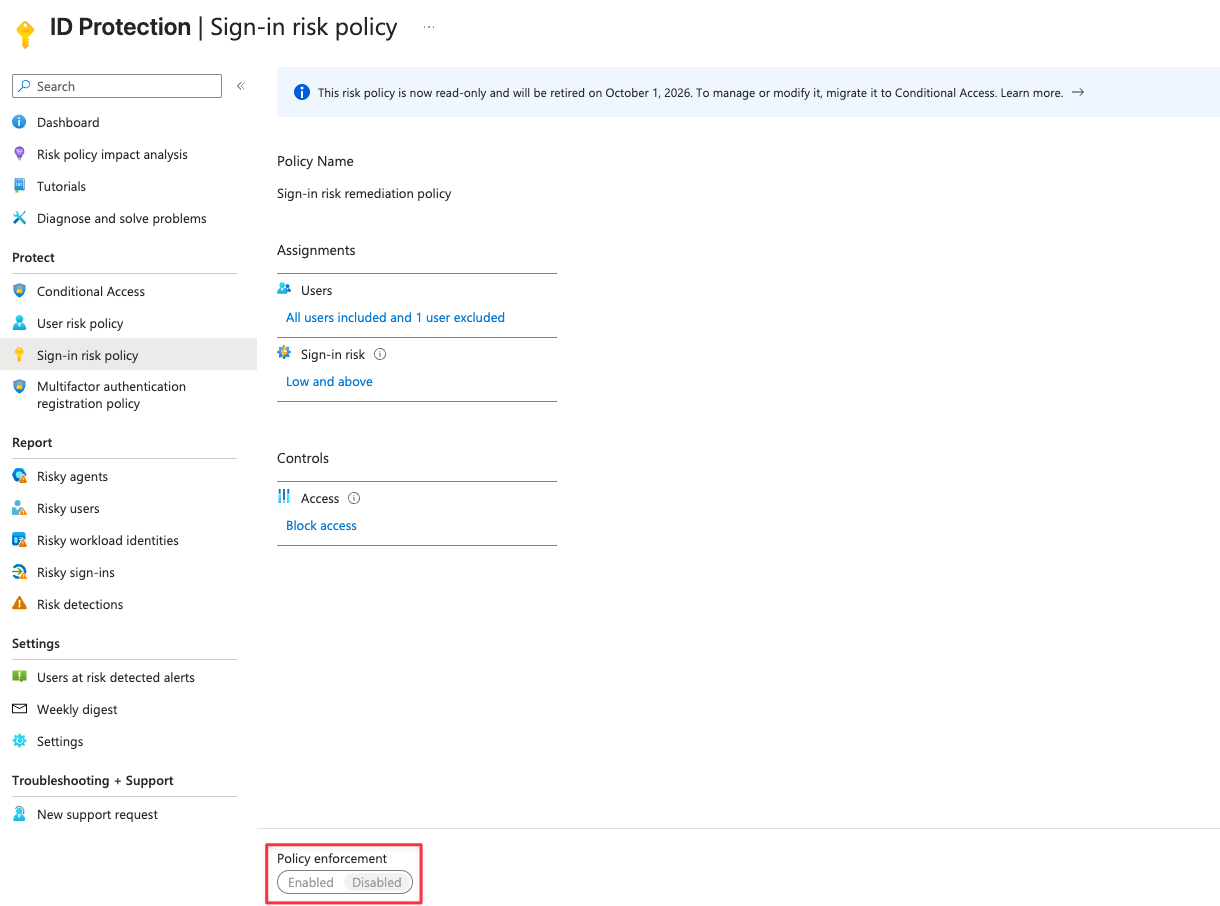
Disable the old policies
After the Conditional Access policies are enabled and verified, disable the old policies under:
Microsoft Entra admin center > ID Protection > Protect > User risk and Sign-in risk policy
Final thoughts
This migration is mostly a change in where the policies are configured, but it is also a good opportunity to review how your organization handles identity risk.
Conditional Access gives you more options than the old ID Protection policies, but it also means you should carefully test your scope, exclusions and remediation requirements.
Do not wait until the retirement date. Create the replacement policies in Report-only mode, review the results and move them into production well before October 1, 2026.