Some of the most important connections a Windows device makes happen before the desktop loads.
A user signs in with credentials that are not cached on the device. An expired password needs changing. Group Policy needs to reach a domain controller. SCCM or WSUS needs to contact an on-premises endpoint at startup.
Those scenarios need connectivity before a user session is available.
Device Access brings that connectivity to Global Secure Access. The GSA client authenticates the device and establishes a tunnel to selected private applications before a user signs in.
What it actually does
The flow is simple once you see it.
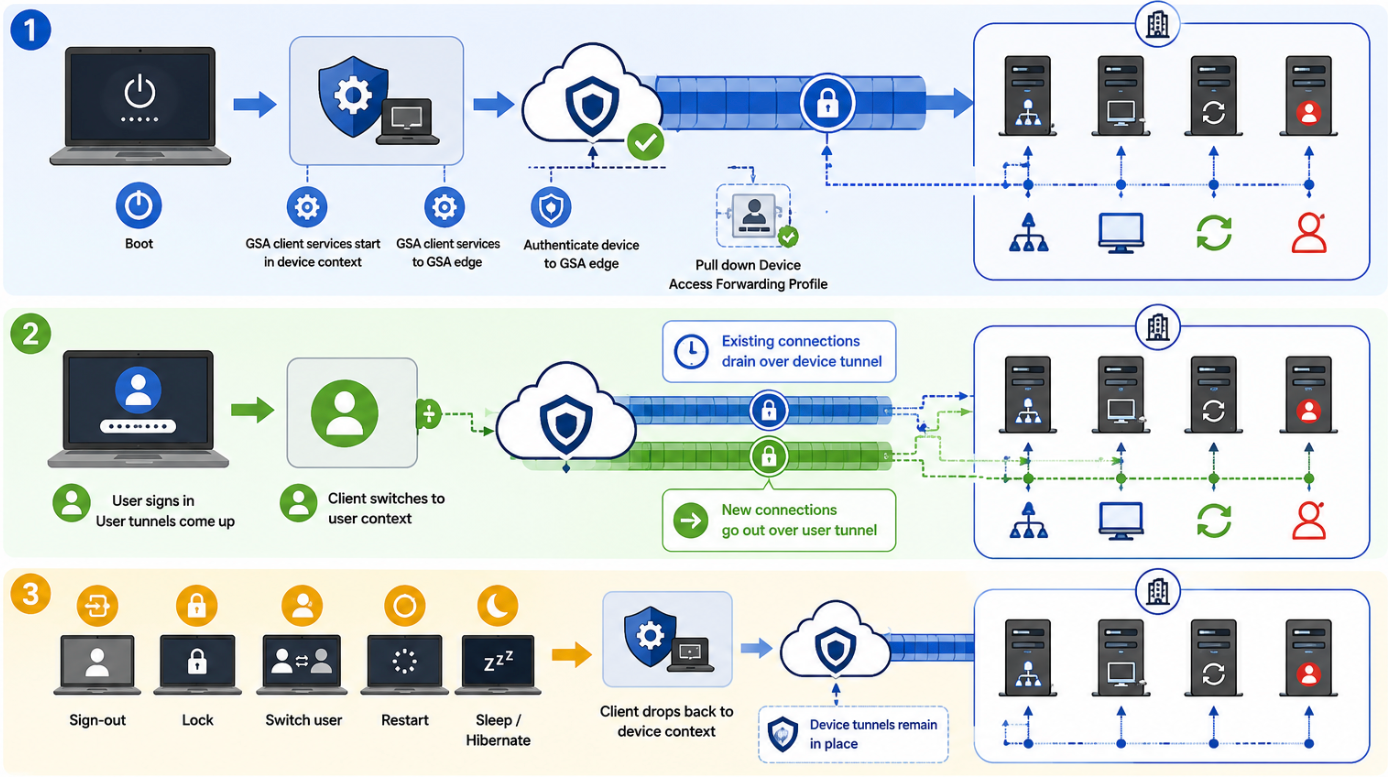
The computer boots, and the GSA client services start. The client authenticates the device to Global Secure Access, receives a Device Access forwarding profile, and establishes a device tunnel.
That tunnel provides access to the private applications included in the profile. Those applications can include:
- Domain controllers
- NTP services
- Microsoft Configuration Manager, also known as SCCM
- Windows Server Update Services, or WSUS
- Other required on-premises identity services
When a user signs in and the user tunnels are established, the client switches to user context. Existing connections drain over the device tunnel, while new connections use the user tunnel.
Clean handoff if I may say so 😁.
The client switches back to device context when a user context is no longer available.
It covers more than startup
Device Access becomes active:
- After a restart, before a user signs in
- After a user signs out
- While the user session is locked
- After the device resumes from sleep or hibernation
So this is more than a boot-time feature. It also covers the Windows sign-in screen and a locked session.
What you get out of it
The scenarios this unblocks are the boring, unavoidable ones:
- Sign in to Windows with credentials that are not cached on the device.
- First-time user on a machine, or right after a password reset.
- Reach domain controllers for authentication, NTP sync, and Group Policy processing during sign-in.
- Let SCCM and WSUS talk to their on-prem endpoints at startup instead of waiting for a user.
- Run password change and reset flows that need to hit a DC directly.
If you have been trying to retire a legacy VPN in a hybrid environment, this was usually the blocker. Machine tunnels were the one thing the old client did that GSA could not.
Know the boundaries
Before planning a rollout, there are a few things to get straight.
Windows only. Other platforms are not supported by Device Access in this preview.
Private Access only. Internet Access and Microsoft 365 traffic are not tunneled in device context. If those profiles are enabled, their traffic uses user context after sign-in.
The device must already be Microsoft Entra joined or Microsoft Entra hybrid joined. Device Access does not support domain join scenarios.
Assignments are based on devices. Device Access profiles are separate from user-context forwarding profiles, and their priorities are evaluated independently.
Prerequisites
Get these in place first, otherwise you will spend an afternoon debugging something that was never going to work:
The devices are Entra joined or Hybrid joined, and the latest GSA client is installed. Make sure it is the current client build, since older versions will not pick up a device profile at all. Three ways to get it out there:
- Download the latest client directly from
https://aka.ms/GlobalSecureAccess-Windows - Grab it from the Entra ID Portal under Global Secure Access > Connect > Client download
- Push it out through Intune or any other MDM
Also make sure the private applications you want exposed for Device Access, are already onboarded in GSA with connectors deployed and application segments defined.
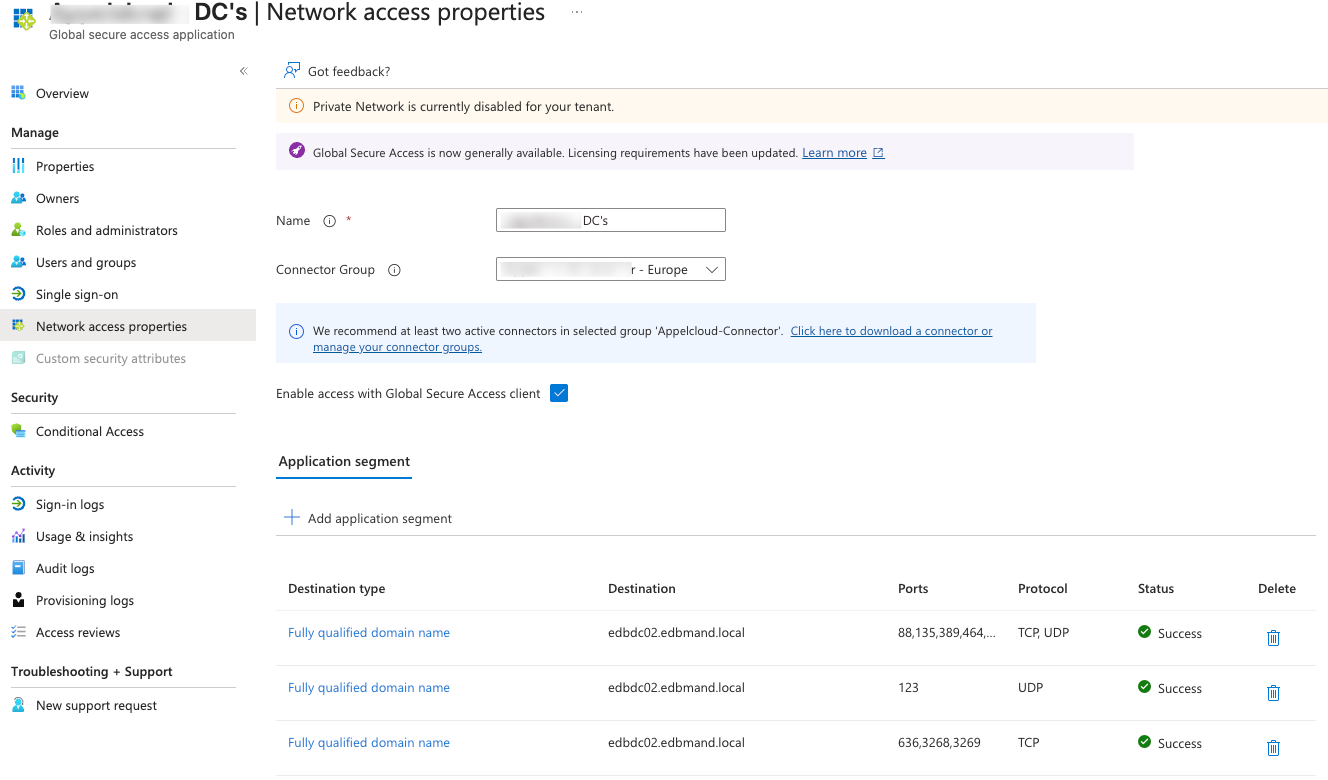
Configuration recommendations that are worth treating as requirements:
For AD DS scenarios, enable Private DNS and add the DNS suffix for your on-premises Active Directory domain. Windows uses that suffix to locate domain controllers.
Publish your domain controllers as a separate private application.
There is also an important Quick Access detail. If your Private DNS definitions are configured through Quick Access, you must enable Device Access on the Quick Access application and include those definitions in the Device Access profile.
Quick Access contributes only its Private DNS definitions. Its application segments are not added to the device tunnel.
Publish the resources the device needs as separate private applications.
You will also need Global Secure Access Administrator and Application Administrator role to do any of this, or of course Global Administrator.
Configuration
Three steps, in order.
Step 1: create the Device Access profile
Device Access profiles live on their own tab under Traffic forwarding. They behave like a Private Access profile, except assignments are device based.
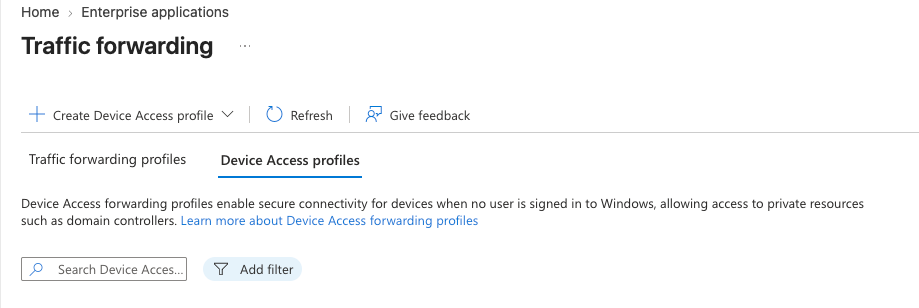
Browse the Microsoft Entra ID Admin Center, then Global Secure Access > Connect > Traffic forwarding, switch to the Device Access profiles tab, and select Create Device Access profile > Private Device Access profile.
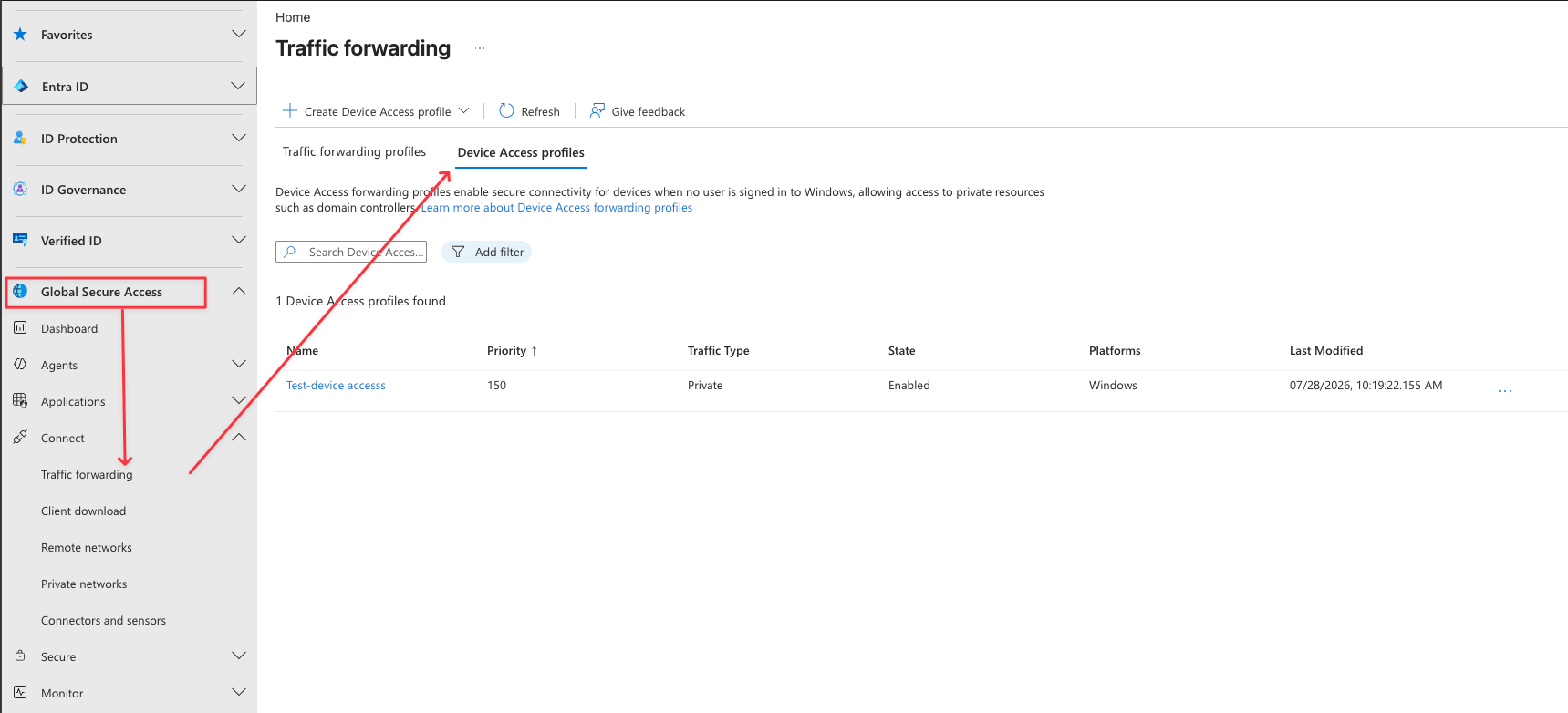
Give it a name, set a priority, and leave the status enabled. Traffic forwarding type is fixed to Private access.
Priority is worth a note: Device Access profiles are prioritised independently from user-context profiles, so you are not competing with your existing forwarding profile numbering.
If you want to stage it before it does anything, set Status to Disabled and turn it on later.
Step 2: add acquisition rules
Acquisition rules decide which private applications the device can actually reach in Device Access.
Open the profile, go to Acquisition rules, and toggle Quick Access on if you need Private DNS. Then Add applications and pick your device access enabled apps.
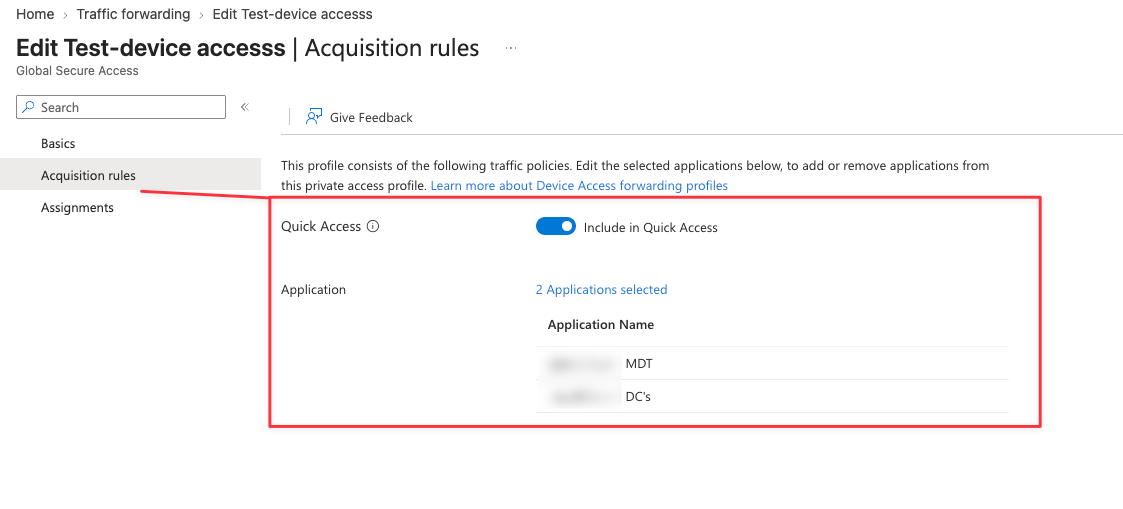
Save the rule.
Step 3: assign devices
Unlike user-context profiles, this profile is assigned to devices, device groups, and device platforms.
Under Assignments you have to configure both Device assignments and Device platform assignments. Confirm Windows is selected under platforms, since nothing else supports device access anyway.
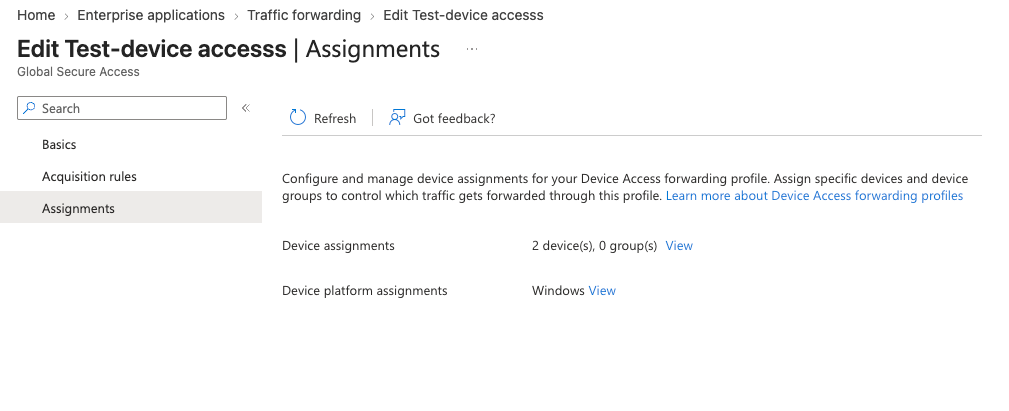
Three assignment scopes are available.
No devices leaves the profile configured but inert, which is what you want while staging.
All devices hits every Entra joined and Hybrid joined Windows device in the tenant.
Selected devices is the one you should be using for a pilot, and arguably in production too.
The strongest argument for Selected devices is scoping by need. Hybrid joined machines are the ones that need DC access to support sign-in without cached credentials. A pure Entra joined laptop with Windows Hello for Business probably does not need a pre-logon tunnel at all. Give device context only to the devices that have a reason for it.
Verifying it works
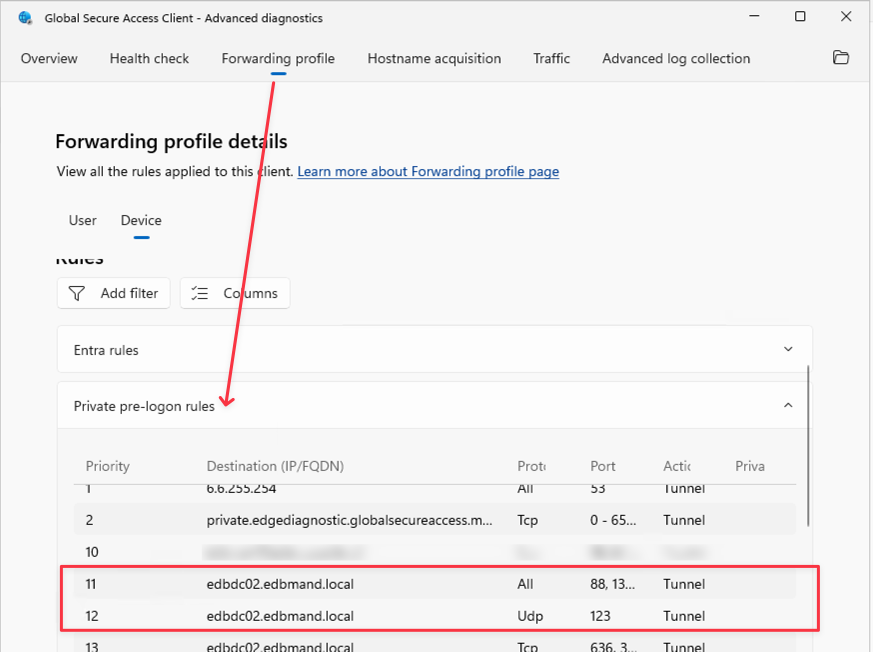
Give the policy a few minutes to propagate, then go to a target device.
First, confirm the client received the profile. Open Global Secure Access Client Advanced diagnostics
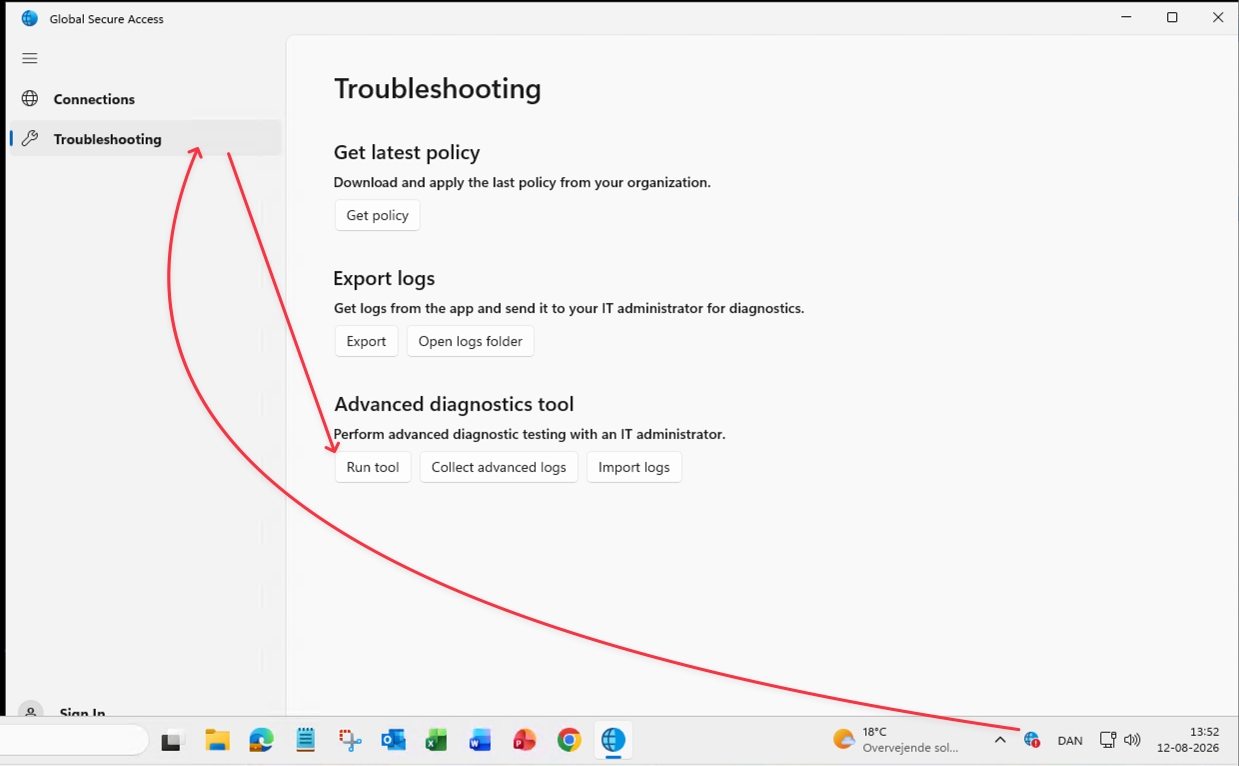
Go to the Forwarding profile tab, and switch to the Device tab. You should see the pre-logon rules and Private Access definitions there. If the Device tab is empty, the problem is assignment or client version, not networking.
Then do the real test. Restart the device and stay on the Windows sign-in screen. Sign in with a user whose credentials are not cached on that machine. If Device Access is working, the sign-in succeeds because the client reached a domain controller through the tunnel with no user session in play.
Confirm Group Policy applied during that sign-in by checking Event Viewer under Applications and Services Logs > Microsoft > Windows > GroupPolicy > Operational.
Logging and what to look for
The Global Secure Access Entra Logs shows alot!
Audit logs cover creation and deletion of Device Access forwarding profiles, changes to device assignments, changes to the application list in a profile, and Device Access enablement per application.
Traffic logs are where it gets useful. Device Access transactions carry the Entra Device ID and an empty User ID. That empty User ID is your filter for isolating pre-logon traffic.
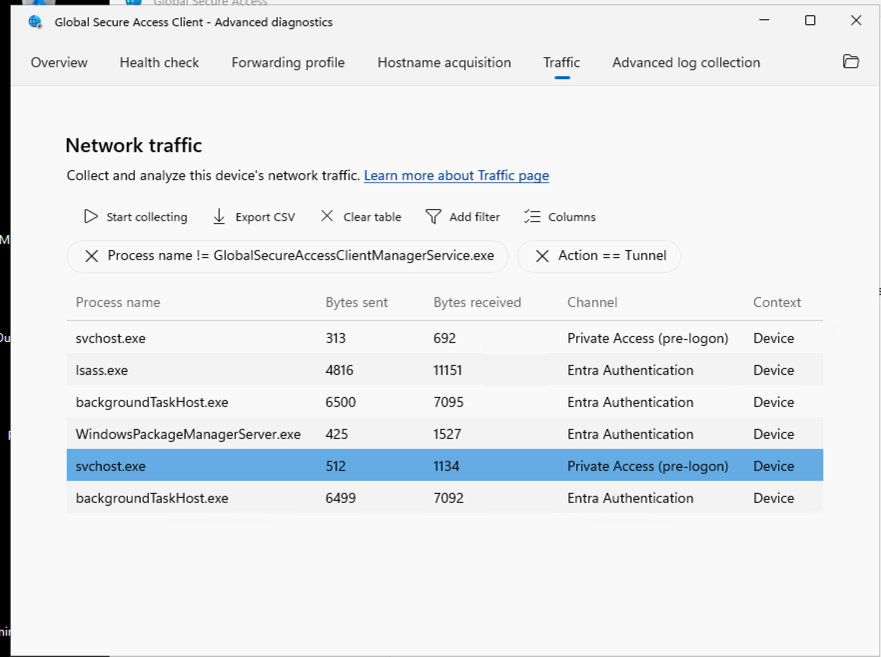
In the GSA client's Advanced diagnostics traffic recording, the two columns that matter are Channel and Context.
Capture on a machine sitting at the sign-in screen and every row comes back with Context set to Device. The Channel column then splits that traffic into two kinds.
Entra Authentication: is the device authenticating itself, which is what you see from lsass.exe and from background processes like backgroundTaskHost.exe or WindowsPackageManagerServer.exe doing their own token work.
Private Access (pre-logon): is the actual tunnelled traffic to your on-prem applications, typically showing up under svchost.exe.
That combination is the confirmation you want: a process with no user session behind it, tunnelling to a private application, logged as Device context. Sign in and start generating the same traffic from a user session, and the Context column flips to User while the Channel drops the pre-logon marker.
Client logs go to ETL and Event Viewer in Device Access and are picked up by the standard log collection, so support bundles work the way you expect.
Cutting off a device
This is the part to think through before you roll out, because device context means access without a user, which means your usual user-side controls do not apply.
If a device is lost, stolen, retired, or compromised, disable the device object in Microsoft Entra ID. The client then fails to authenticate to GSA services and the pre-logon tunnel is gone. It also blocks the device from authenticating to other Entra applications, which is what you want in that scenario anyway.
That is the lever. Plan your offboarding process around it and make sure disabling the device object is actually part of your device retirement runbook, not something someone does eventually.
Worth testing
Device Access closes the last real functional gap between GSA and a traditional VPN with a machine tunnel. If you are running hybrid joined Windows devices and have been holding onto a legacy client purely for pre-logon connectivity, this is the feature that lets you plan the exit.
Start on a scoped device group rather than tenant wide, publish domain controllers as their own application, keep the pre-logon application list as short as it can be, and watch the Context column while you test.