When collaborating with external partners in Microsoft Entra ID, multiple guest accounts may expanding over time. After collaboration ends, these accounts may become inactive. Administrators can manage these accounts efficiently using inactive guest insights and Access Reviews, which automatically review, block sign-ins, and delete inactive guest users.
💡In this short article we will go though how we can get an overview over our external accounts and take action accordingly.
Requirements:
- Microsoft Entra ID Governance licenses
Insights and reporting
Let's start out by monitor the inactive guest accounts in our organization. Customize the inactivity threshold depending the organization's needs, narrow down the scope of guests to monitor and identify the guest accounts that may be inactive.
- Access your Entra ID
- Go to Identity governance pane
- Click on Dashboard
- Under the Guest access governance card, click View inactive guests
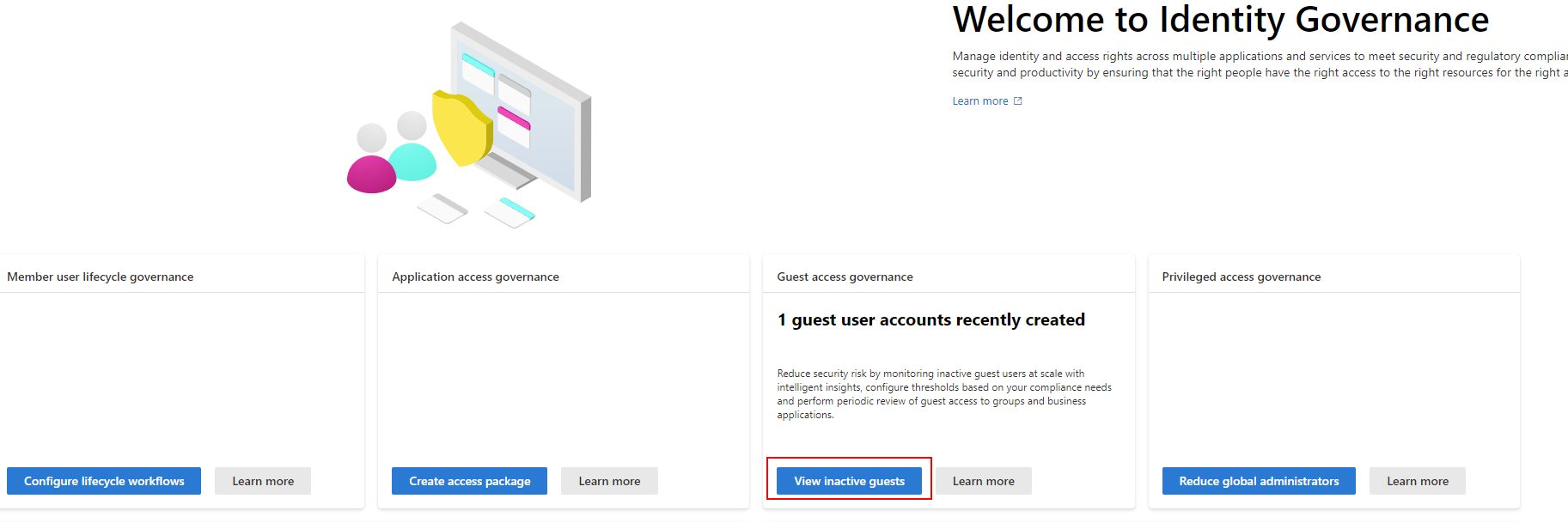
Here you will get a good overview of all the external accounts in your Entra ID Tenant; as per default, guest users will be marked as inactive after 90, this is calculated based on last sign in date if the user has signed in atleast once. For users who have never signed in, the inactive days are calculated based on creation date.
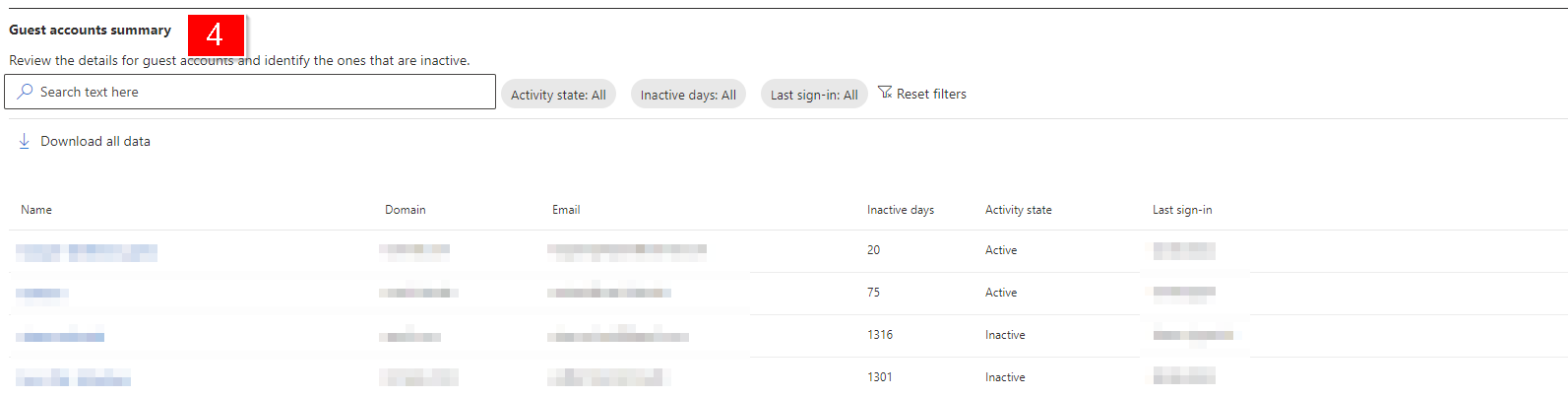
Below is a more detailed description of this page
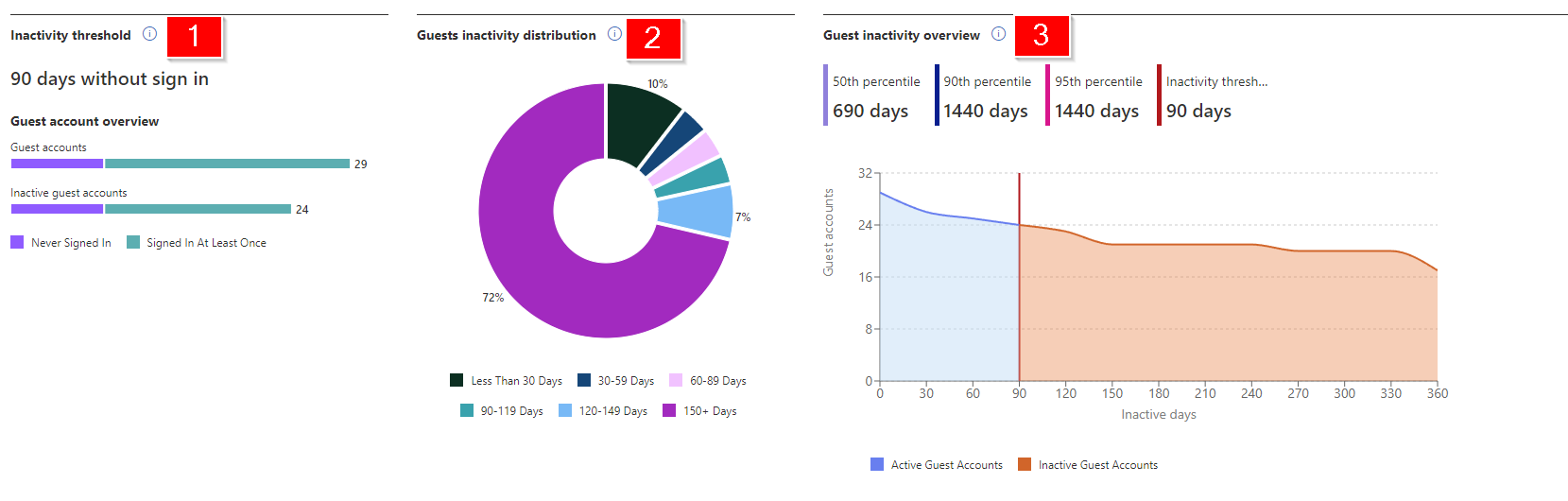
- [1] Guest account overview (total guests and inactive guests with further categorization of guests who have never signed in or signed in at least once)
- [2] Guest inactivity distribution (Percentage distribution of guest users based on days since last sign in)
- [3] Guest inactivity overview (Guest inactivity guidance to configure inactivity threshold)
- [4] Guest accounts summary (An exportable tabular view with details of all guest accounts with insights into their activity state. The Activity state could be active or inactive based on the configured inactivity threshold)
We can change the inactivity threshold by clicking on Edit inactivity threshold at the top of the dashboard and adjust accordingly

Access Reviews
Now we have taken a look at the Insights and reporting part of Identity governance, let's review and take action of what should happen to our external users who is inactive.
- Let's start of by creating a dynamic user group and assign our external users with dynamic expression. The below expression is assigning Guest user account who is enabled and belong to the domain domain.com; you can remove the domain part if you want all Guest accounts assigned
(user.userType -eq "Guest") and (user.mail -contains "@domain.com") and (user.accountEnabled -eq true)- Now head over to Identity governance pane in Entra admin center
- Click on Access Reviews
- Click New access Review
- Select Teams + Groups
- Fill out the form as below
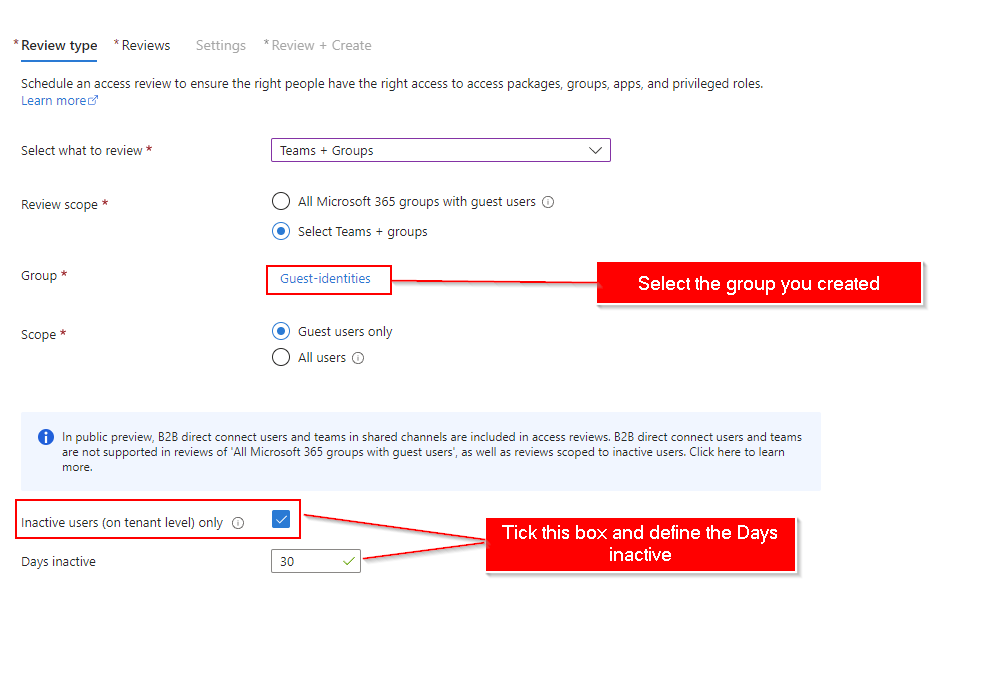
- The inactivity time you configure will not affect recently created users. The Access Review will check if the user has been created in the timeframe you configure and ignore users who haven’t existed for at least that amount of time. For example, if you set the inactivity time as 90 days and a guest user was created/invited less than 90 days ago, the guest user will not be in scope of the Access Review. This ensures that guests can sign in once before being removed.
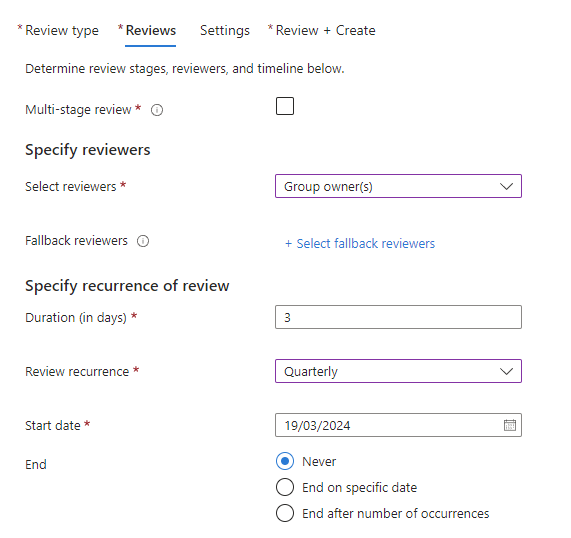
- Click on Next: Reviews
- Fill out the reviews as you want to
- Click on Next: Settings
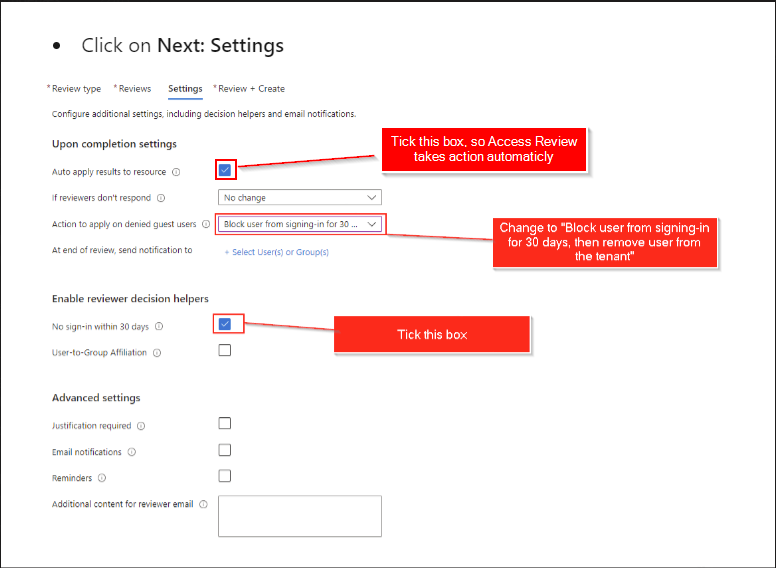
- Tick the box "Auto apply results to resource", Change the two options as described in the above picture; The other options can be changed as you want to (optional).
- Click Next: Review + Create and you have now successfully created an Access Review for Inactive users 🎊

- Guest users who don't sign into the tenant for the number of days you configured are disabled for 30 days, then deleted. After deletion, you can restore guests for up to 30 days, after which a new invitation is needed.