If you have been waiting for a way to give contractors, consultants, and external partners access to your internal resources without forcing them to Entra join their personal or company devices to your tenant... well, good news just landed.
Microsoft has introduced BYOD (Bring Your Own Device) support for Global Secure Access Private Access, and it is a game changer for organizations that work with external identities through B2B collaboration. Let me break it down.
What Changed?
Previously, using the Private Access traffic profile in Global Secure Access required Windows devices to be Entra ID joined or hybrid joined to the resource tenant. For contractors and consultants working from their own machines, that was a blocker. You either had to compromise on security or go through a painful device enrollment process that nobody was thrilled about.
That requirement is now gone.
Customers can enable users and partners to access corporate resources from their own devices without joining those devices to the resource tenant. Administrators can assign the Private Application traffic profile to users with internal accounts, including internal guest users — and the device does not need to be domain joined.
How Does It Work With B2B?
Here is where it gets really interesting for organizations running a multi-tenant or partner-heavy environment.
Global Secure Access now supports assigning External Identities and B2B guest users directly to Private Access Applications. This means you can bring in a consultant as a B2B guest in your resource tenant, assign them to the relevant Private Access app, and they can connect from their own device — no Entra join required, no complex device compliance gymnastics.
The key pieces here are:
- B2B guest users can be assigned to Private Access Application traffic profiles
- No Entra ID joined device is required for access
- Users only need to be registered as guests in the resource tenant
- The Global Secure Access client handles the tunneling on the device side
This keeps the device independent while still giving you the control and visibility you need on the network and application access side.
A Real-World Scenario
Imagine you bring in an external consultant for a 3-month engagement. They have their own laptop, managed by their own company. You do not want to enroll their device into your Intune environment, and they definitely do not want that either.
With this new capability you can:
- Invite the consultant as a B2B guest in your Entra ID tenant
- Assign them to the Private Access Application that covers the internal resources they need
- Have them install the Global Secure Access client on their device
- They sign in with their guest identity and get secure, tunneled access to your internal apps
No domain join. No Intune enrollment in your tenant. No headaches on either side.
So What Does This Change?
For a lot of organizations, especially those working in professional services, consulting, or project-based work, the old device requirement was a real friction point. You want to give people what they need to do the job without handing over control of their device or your tenant.
This feature strikes that balance nicely. You keep Zero Trust principles in place, access is still controlled through Entra ID, the Private Access policies, and Conditional Access — but you remove the unnecessary dependency on device join state for external users.
It is also worth noting that this fits neatly into a least privilege and segmented access model. You are not giving contractors broad network access. You are giving them access to specific Private Access applications, scoped and auditable.
What You Need to Get Started
To take advantage of this, you will need:
- Microsoft Entra ID P1 or P2 (included in Microsoft 365 E3/E5 and similar bundles)
- Global Secure Access licensing (Microsoft Entra Private Access)
- Global Secure Access client installed on the end user device
- The external user invited as a B2B guest and registered in the resource tenant
- A Private Access Application configured and assigned to the relevant users or groups
For the full technical walkthrough and prerequisites, check out the official Microsoft documentation: Global Secure Access — Bring Your Own Device
Setting This Up in Your Environment
The admin side of this is refreshingly straightforward. Let me walk through it:
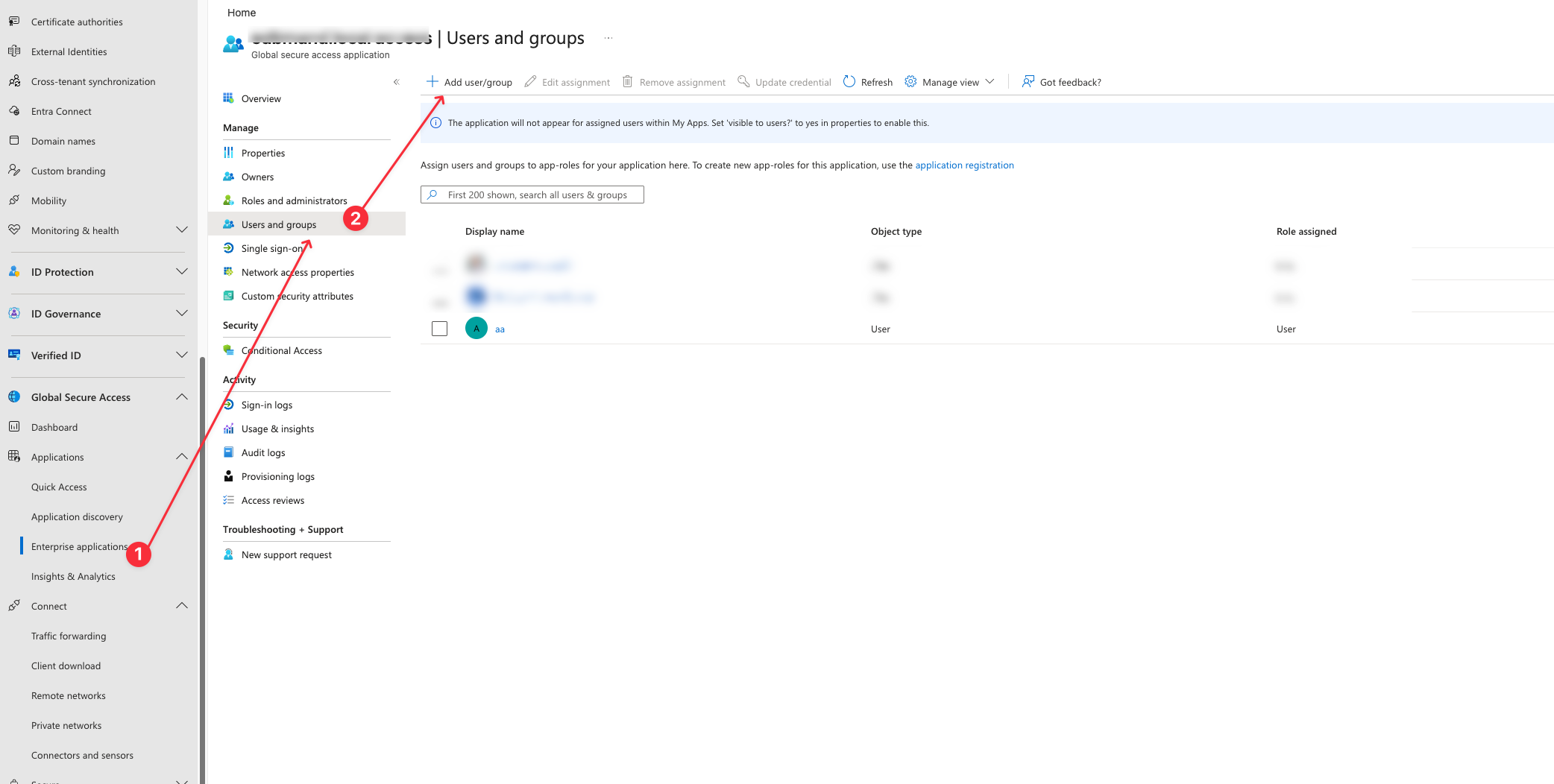
- Navigate to Global Secure Access in the Entra Portal.
- Select your Application or Quick Access
- Navigate to "Users and groups"
- Assign the external user to the application
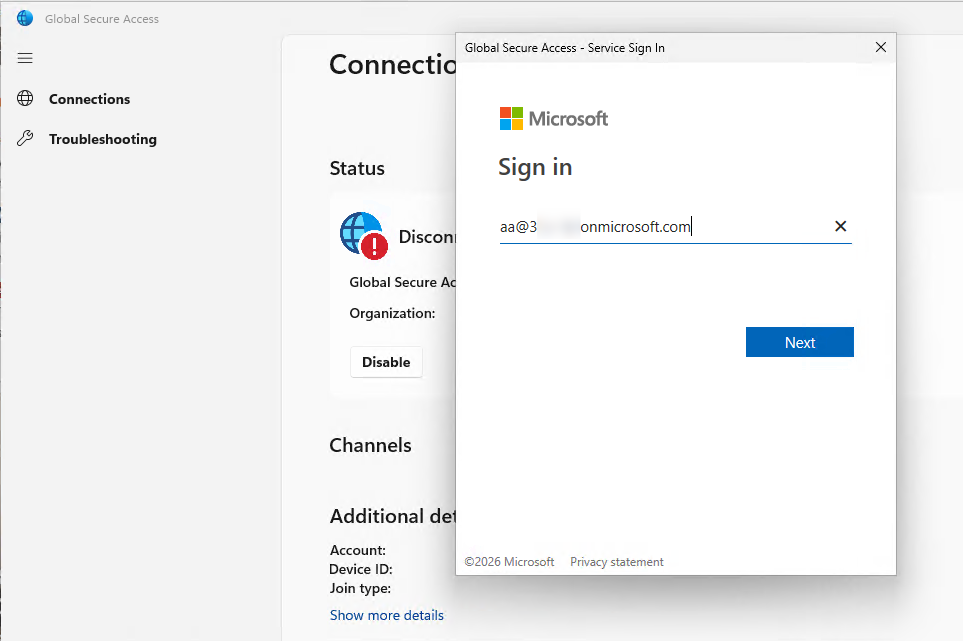
- Now the user has to install the GSA Client on their BYOD
- The user must sign in with their own Entra ID account
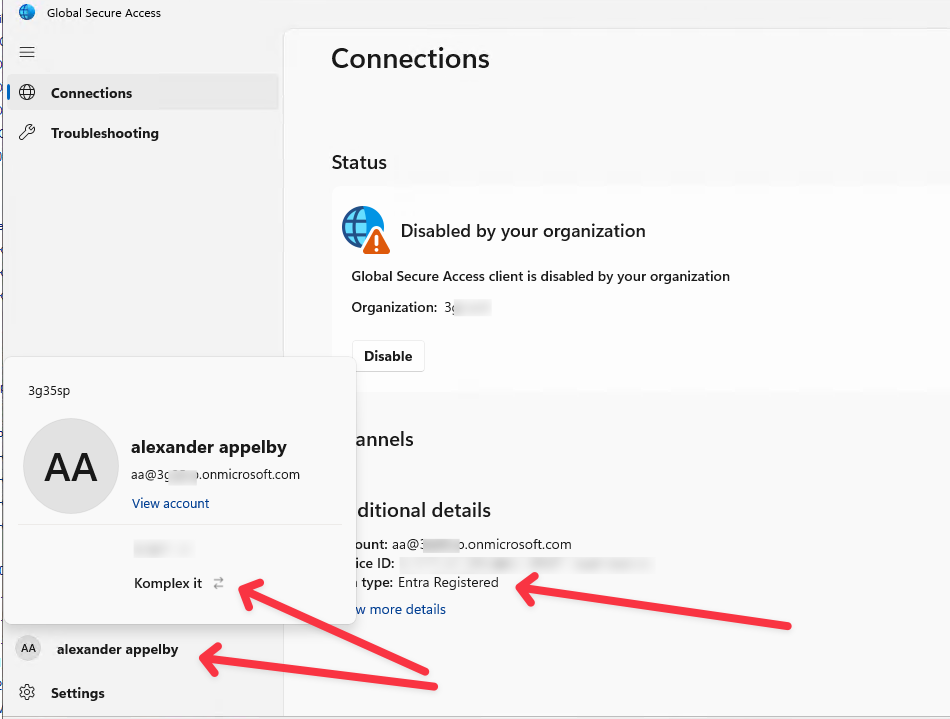
- When signed-in click on Account Name and on the Organization you wish to connect to.
- NOTE: the Join type is "Entra Registered"
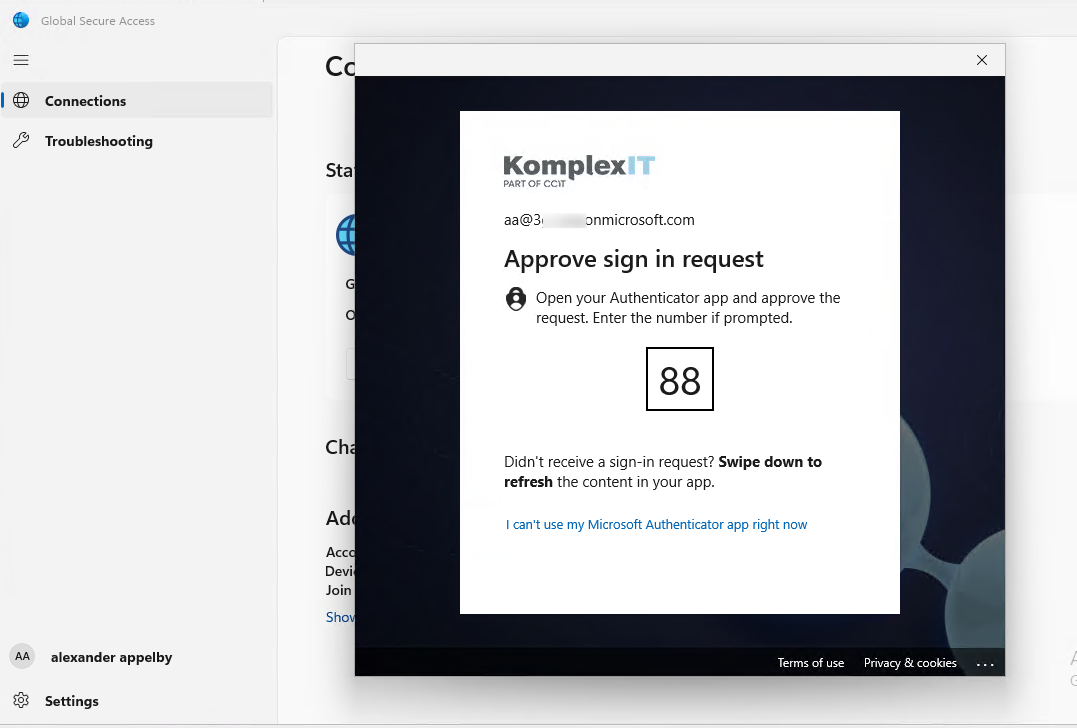
- I'm getting prompted for MFA to continue
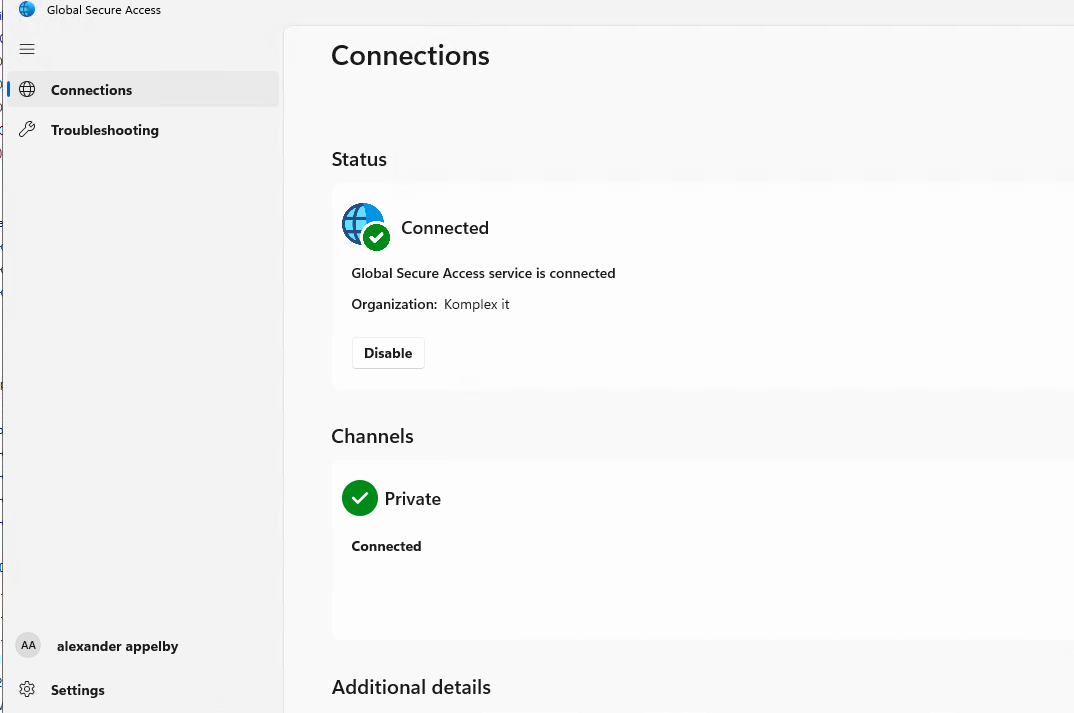
- Then successfully connected to the Private Access with Entra ID Registered Device and External Account
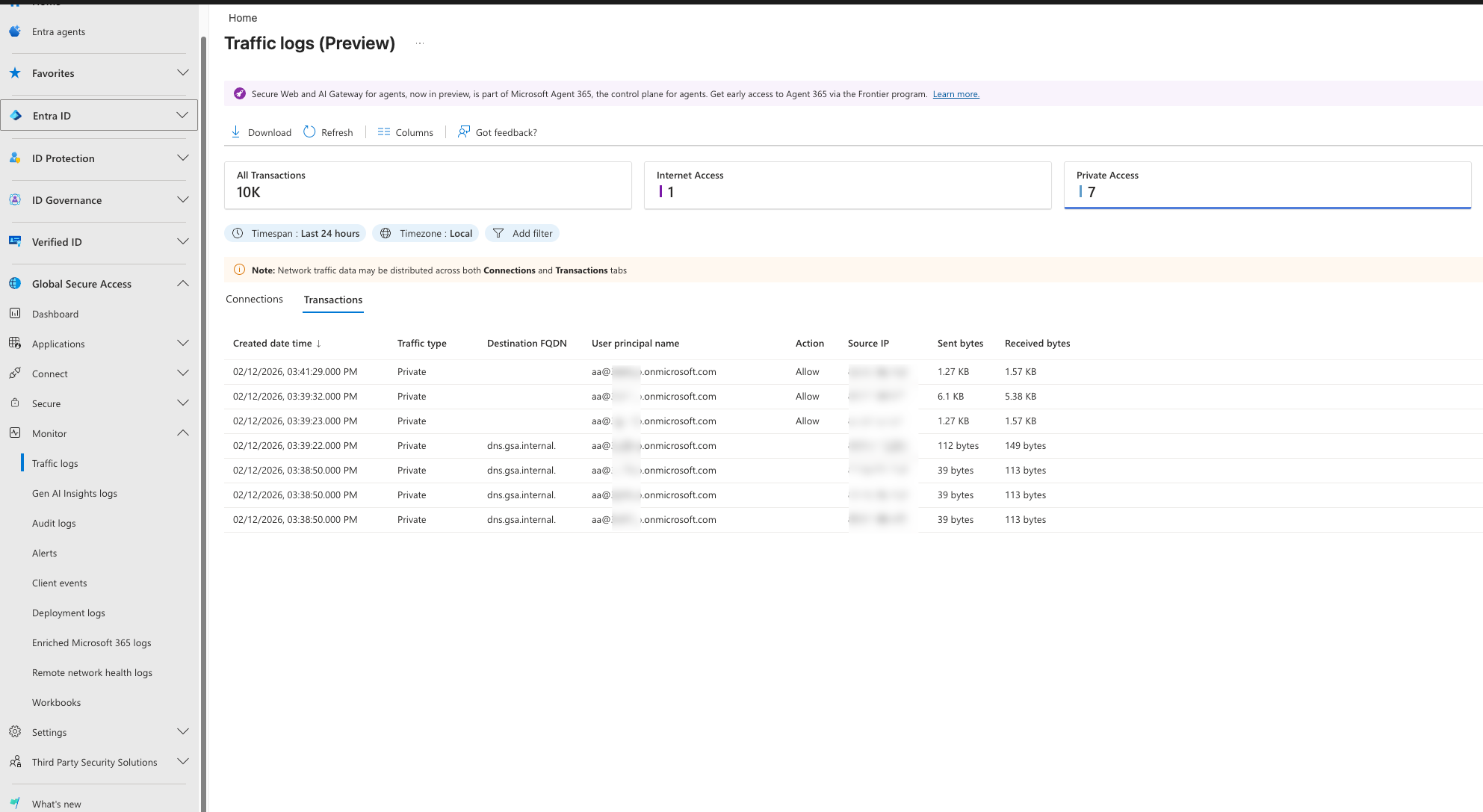
- You should see the the External user in the Traffic logs aswell
Wrapping Up
This is one of those updates that quietly solves a problem a lot of admins have been working around for a while. The combination of B2B support, no device join requirement, and Private Access scoping makes it much easier to extend secure internal access to people outside your organization — in a way that actually scales.
If you are managing a Global Secure Access deployment or planning one, this is worth adding to your BYOD and partner access strategy sooner rather than later.
As always, if you have questions or want to talk through how this fits into your environment, feel free to reach out. Happy to help 😊