Microsoft has released a really nice capability to Global Secure Access: B2B guest access.
In short, this lets external users (partners, vendors, contractors, etc.) use the Global Secure Access client to reach your private apps in your tenant without you having to hand out corporate laptops or punch extra holes in firewalls. It builds on standard Entra B2B identities and plugs into all the usual stuff like Conditional Access and Continuous Access Evaluation.
This feature is currently in preview, so don’t be surprised if the UI shifts a bit over time or some rough edges still exist.
In this post we’ll cover:
- What this new B2B guest feature actually does
- Prerequisites you need in both home and resource tenants
- Step-by-step: how to set it up end-to-end
- Known limitations and gotchas
What is B2B Guest Access in Global Secure Access?
Traditionally, if you wanted external users to access internal apps, you either:
- Gave them VPN access (high risk, low visibility), or
- Gave them virtual desktops, jump hosts, or one-off accounts, and tried to control traffic with firewalls and proxies.
With Global Secure Access (GSA), Microsoft Entra’s SSE layer (Internet Access + Private Access), you can now:
- Use B2B guest identities in your tenant as the security boundary.
- Route only the private app traffic from the guest device through your Global Secure Access service.
- Keep all the normal Conditional Access, device compliance, and cross-tenant trust signals in play.
Key points:
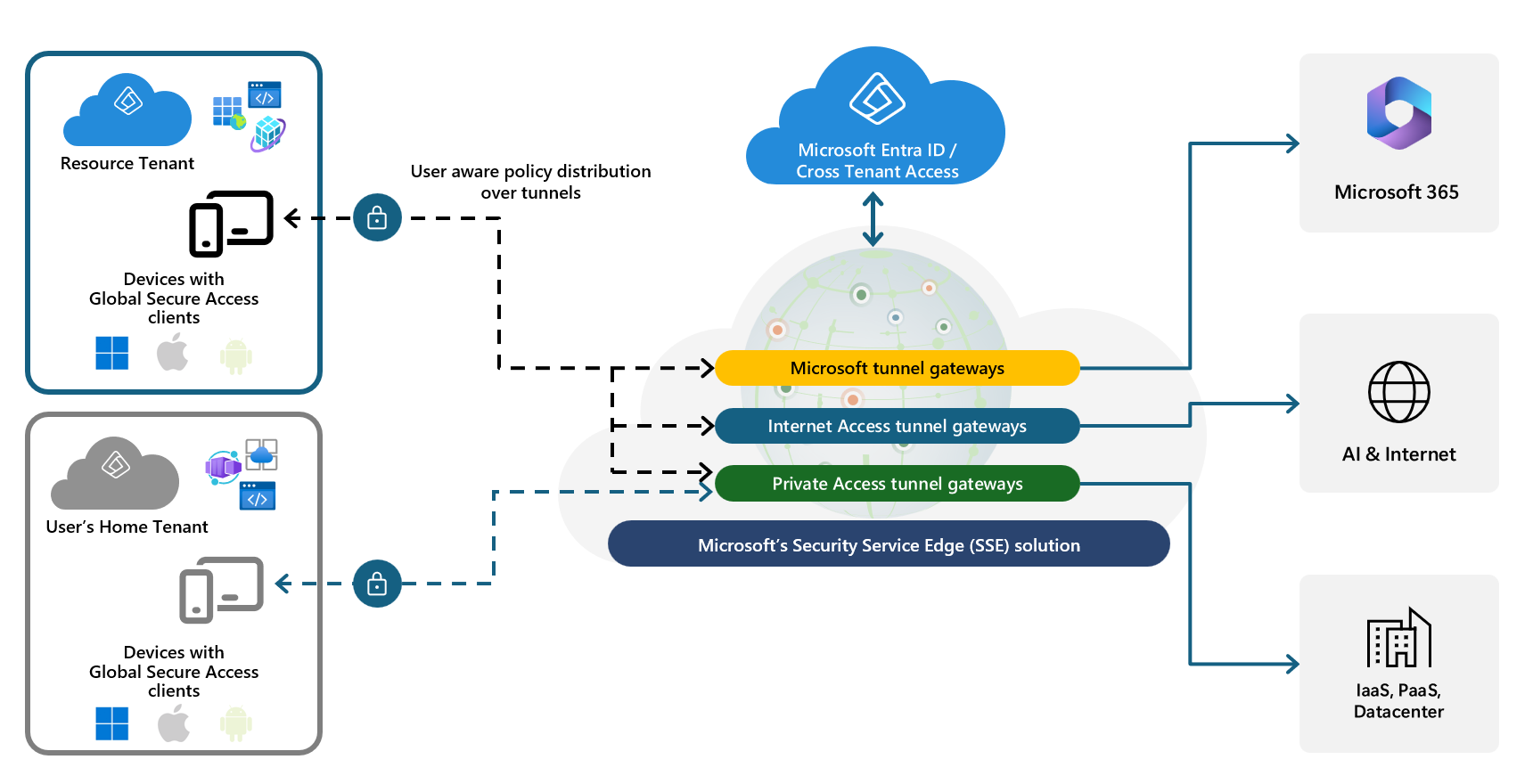
- The resource tenant is your tenant with the apps and GSA configured.
- The home tenant is the guest’s own organization (where their primary identity lives).
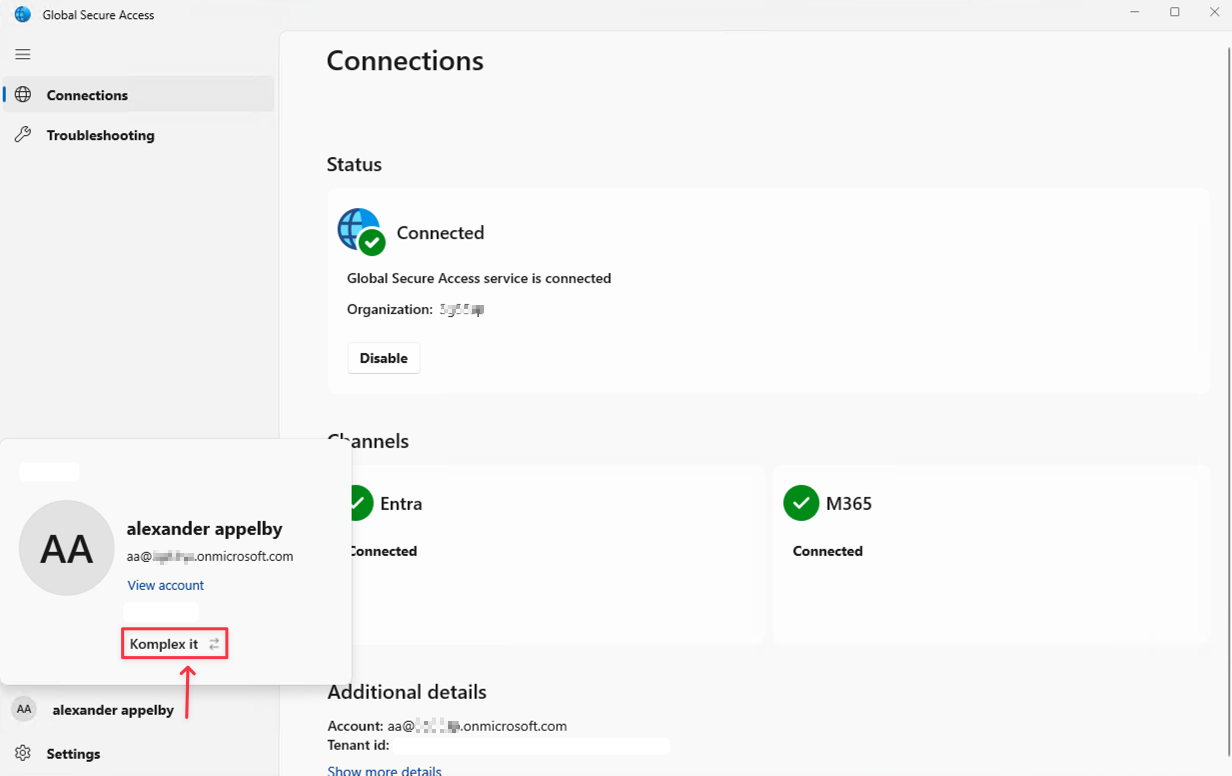
- The Global Secure Access client runs on the guest’s device, signed in with their home account. The client then discovers where they’re a guest and lets them switch into your tenant to access your private apps.
- Only the Private Access tunnel is switched to your tenant; internet/M365 tunnels to their home tenant are disconnected while they’re in your tenant context.
Prerequisites
General
In your resource tenant (your org):
- A Microsoft Entra tenant (obviously).
- Global Secure Access Private Access onboarded and enabled.
- At least one private application onboarded to GSA and published via Private Access.
- Appropriate Global Secure Access licensing for the resource tenant users and guests. (No licenses needed for guest/home tenant!)
On the guest devices (home tenant):
- Global Secure Access client installed
- version 2.24.117 or later.
- Device joined to the home tenant’s Microsoft Entra ID where required for B2B logins.
Identities and B2B
In the resource tenant:
- Guest users created as B2B guests or member-type synced guests (both supported).
- Those guest users assigned to:
- The private apps they need.
- The proper Private Access traffic forwarding profile.
Client Configuration – Guest Access Toggle
On the guest device, the GSA client needs guest access enabled via a registry key:
Path:
Computer\HKEY_LOCAL_MACHINE\Software\Microsoft\Global Secure Access Client
Value:
GuestAccessEnabled(REG_DWORD)0x1– Guest access enabled0x0– Guest access disabled
This can be set via Intune/MDM, Group Policy, or your config management of choice.
This guide is assuming you have setup GSA and already using Private Access
Create/Adjust a traffic forwarding profile for guests
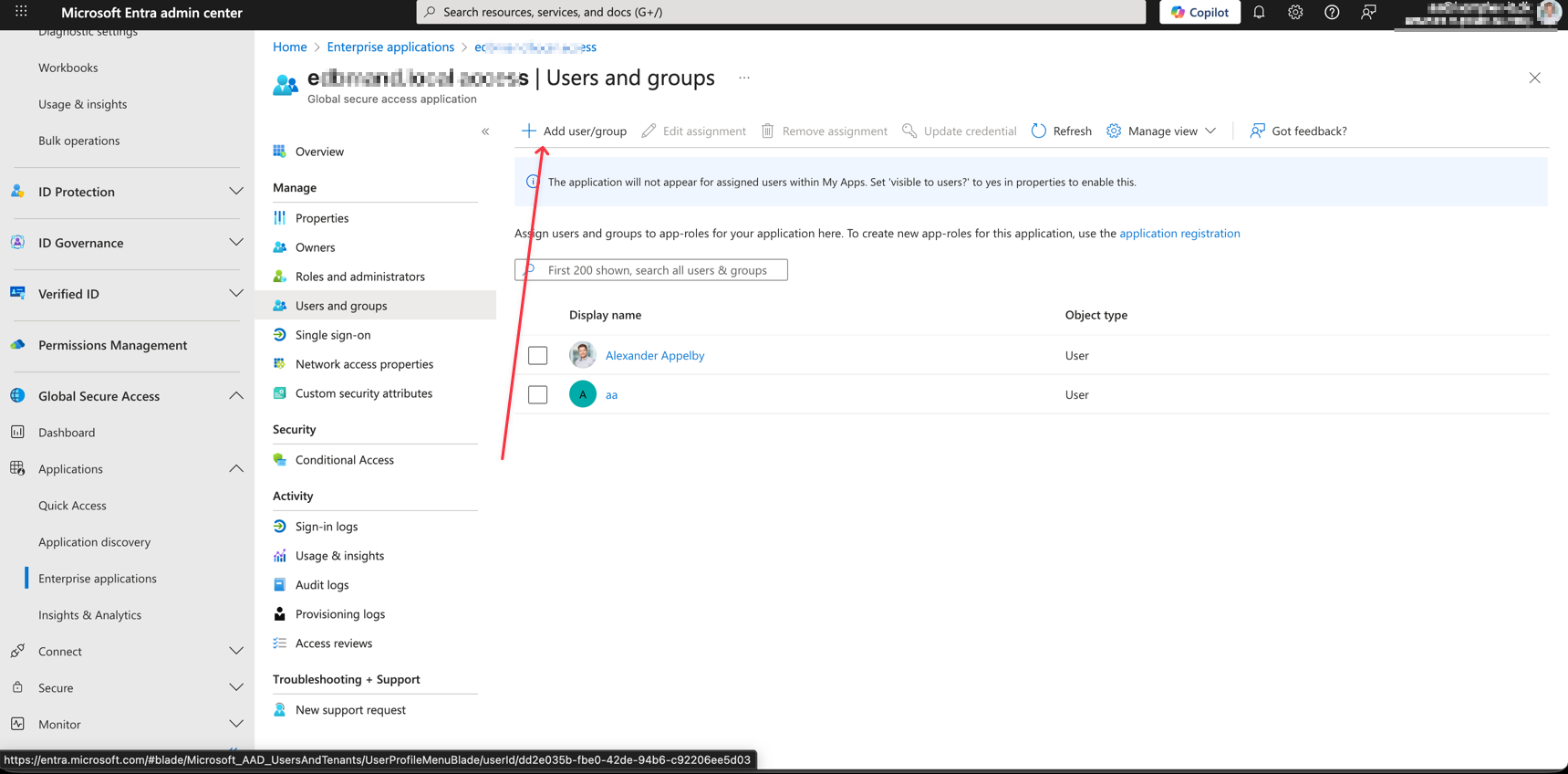
- Navigate to Microsoft Entra Portal
- Global Secure Access -> Applications -> Enterprise Applications and either create og select your desired application.
- Click Users and Groups -> Add user/group and select your Guest/B2B Accounts
Configure GSA client for the guest user
On the guest’s device (home tenant):
- Install the Global Secure Access client
- Grab the latest installer from the official documentation (Only supported by Windows for now).
- Windows: aka.ms/GlobalSecureAccess-Windows
- Grab the latest installer from the official documentation (Only supported by Windows for now).
- Make sure version is 2.24.117 or later.
- Enable guest access via registry
- Set
GuestAccessEnabledto1at: Computer\HKEY_LOCAL_MACHINE\Software\Microsoft\Global Secure Access Client
- Set
- Or Push this via:
- Intune: Device configuration / Settings catalog → Custom OMA-URI or PowerShell script.
- Group Policy or your existing config tooling. Microsoft Learn
Sign in to the client with the home tenant account
- Launch the Global Secure Access client (from the systemtray).
- The guest user signs in to the GSA client using their home organization account (for example,
user@partner.com).
No GSA license is required in the home tenant itself – only the resource tenant needs the licensing.
- Now let's switch to the resource tenant in GSA client.
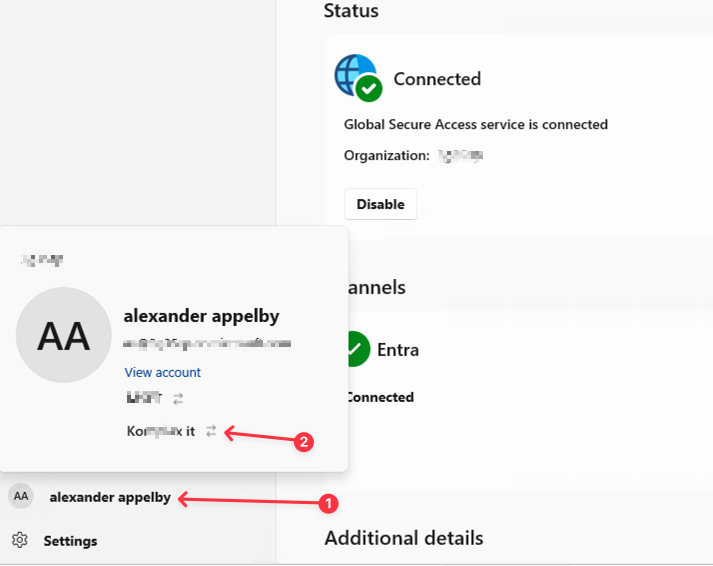
- To switch back to HomeTenant, do the above steps in reverse 😄
Known limitations
- B2B guest access doesn't support keeping the Internet Access, Microsoft 365, and Microsoft Entra tunnels to the home tenant.
- Switching an account to the resource tenant fails when the resource tenant is configured for required MFA in the cross-tenant configuration and the home tenant is configured with passwordless sign-in (PSI) on the authenticator app.
- When Access Control is allowed on cross tenant settings for Global Secure Access, access isn't allowed because Global Secure Access controls these applications.
- When a user switches tenants, existing active application connections like Remote Desktop Protocol (RDP) remain connected to the previous tenant.